
A free satellite TV service from Astro. Watch lifetime entertainment, news, learning & information and more.

Pictures for illustration only.
Enjoy free access to 15+ TV channels & 10+ radio channels.
* Subject to Astro terms & conditions.


Step-1 |
Step-2 |
Step-3 |
Choose a plan & sign-up online. |
Sit back & wait for installation. |
Enjoy your new Astro / Broadband! |
A free satellite TV service from Astro. Watch lifetime entertainment, news, learning & information and more.
Pictures for illustration only.
New decoder only without satellite dish & cabling. You must have Astro/Njoi satellite dish and cable installed and working properly.
Including installation.
New decoder complete with satellite dish & cabling.
Including installation.
Applying for
| Njoi Astro UniFi Maxis |
Find your answers here.
We provide one stop service to apply Astro and Broadband for you.
You can avoid driving and queuing at the sales counter. We are the dealer that can help you to handle your application from the beginning to the end.
We do not charge you when you apply from us. There is no credit card information required to apply here. Charges are the same as you apply from the sales counter.
First, you can apply online, we will get back to you immediately during business hour. WhatsApp/Email/Fax us your Photocopy of IC (for malaysian) / Passport (for foreigners). When we receive all the information, we will proceed with your application immediately.
Once we receive your application with complete information, we will process your application immediately during business hour. The contractor from the service provider will then contact you for installation appointment once your application is approved.
Enjoy greater savings and hassle-free bill payment in one single bill for both Astro and Broadband. You get to enjoy Astro and Broadband at discounted price every month over the contract period of 24 months.
Astro offers multiple TV packs including Entertainment, Sports, Movies and Kids options. You can choose a pack that matches your viewing preferences and add optional streaming apps where available.
Yes, you may subscribe to Astro TV packs without bundling broadband. However, bundling Astro TV with Fibre Broadband may provide better monthly savings and convenience with a single bill.
For small households with light streaming and browsing, 100Mbps is usually sufficient. Larger families, gamers or heavy streamers may benefit from 500Mbps or 1Gbps plans for smoother performance across multiple devices.
Most Astro TV and Fibre broadband plans come with a 24-month contract. Early termination charges may apply if cancellation is made before the contract ends.
Yes, you may upgrade your TV pack or broadband speed at any time, subject to eligibility and coverage. A new contract period may apply depending on the upgrade.
Your monthly bill will be issued directly by Astro. You may receive it via email or access it through your Astro account. Bundled customers will receive a single combined bill for TV and broadband services.
Payment methods may include online banking, auto debit, credit card or other approved payment channels provided by Astro. Our team can guide you during the registration process.
If you experience any service interruption, you may contact Astro customer support for technical assistance. In many cases, issues can be resolved remotely or a technician will be arranged if necessary.
Yes, relocation is subject to service availability at your new address. Relocation charges and contract adjustments may apply depending on your plan.
No, you do not need a credit card to submit your application. Payment setup will be arranged directly with Astro after your service is approved.
Selected Astro TV packs allow optional add-ons such as streaming services depending on current promotions and availability. Additional monthly charges may apply.
Yes, a WiFi router is typically provided during fibre installation. The router model may vary depending on the selected broadband speed plan.
Yes, we will check the service coverage at your address before proceeding with your application to ensure broadband is available at your location.
For Malaysians, please provide a copy of your MyKad. For foreigners, provide a copy of your passport when submitting your broadband application.
After your application is approved, the service provider typically contacts you within 2 to 7 working days to arrange the broadband installation appointment.
Most Astro Broadband plans come with a 24-month contract starting from your installation date. If you relocate, a new 24-month contract may apply at your new address.
Yes, you can relocate your broadband service, subject to service availability at the new address. Your contract may reset for another 24 months from the new installation date.
Yes, you may request to relocate broadband devices within your home. Non-standard installation charges may apply and are payable to the installer directly after assessment.
Yes, you can switch to Astro Broadband. To avoid service interruption, it is recommended to activate the new service before terminating your current broadband contract.
Standard installations may be free during promotions, but non-standard installations (e.g., device relocation or complex wiring) may incur extra charges payable directly to the installer.
Please ensure you:
a. Have your original identification card “MyKad” (Front & Back) with you (Malaysian).
b. Have your original Passport & Visa with you (Non-Malaysian).
c. Are in a brightly lit environment
Firstly, you would have to retrieve your email address/mobile number. Please follow the steps in Q7 in order to do so. Then, follow the steps in Q5 and Q6 to check or update your contact details. Please use your updated email address or mobile number as your Astro ID to log in moving forward.
Note: Only Astro customers whose Astro ID is linked to their subscription can retrieve their Astro ID this way. Otherwise, you would need to create a new Astro ID.
Starting 1 April 2024, Astro’s Chinese content offering on our Primary & Family Pack is now bigger than ever with the addition of up to 10 channels featuring the latest Chinese primetime dramas, variety and current affairs programmes as well as great selection of movies and musical shows. These are the channels available in the Primary & Family Pack at no additional cost:
Please provide your primary mobile number via My Astro Portal, or send it to one of our platforms found here.
Note:
Absolutely not. Astro wants to give our members the convenience of having all their favourite series, exciting originals, vernacular signatures, live sports and local blockbuster movies all in one place.
All Astro customers with Disney+ Hotstar bundle/Add-on will be moved to the Disney+ Hotstar Premium Plan, with no changes to their current subscription pricing starting 24 April 2024. The new Disney+ Hotstar Premium Plan includes 3 concurrent streams, 10 maximum device logins, maximum video quality up to 4K Ultra HD (compatible devices required), and streaming on phone, tablet, laptop and TV.
If you have questions about your Disney+ Hotstar plan, please contact Astro Customer Contact Centre at 03 9543 3838. Alternatively, please WhatsApp Astro at 03 9543 3838 and type DH Help for further assistance.
Of course! Please ensure your account is active when requesting for a move.
Please check SMS received on the unsuccessful payment status and should you require further clarification contact your issuing bank for clarification or contact us via WhatsApp.
Please make sure that:
If the above points have been met, you may try some quick solutions below:
Step 1: Launch the app on your Smart TV.
Step 2: You will be able to see a welcome screen with a QR code and URL.

Step 3: Scan the QR code or go to astro.com.my/tvapp on your mobile and enter your unique code (e.g. FSJV-SMBS) displayed on the TV screen

Step 4: At the login page, you will need to log in with your Astro ID (registered email or mobile number) and password.
(If you do not have an Astro ID, click on "Create now"
to sign up and link to your Astro account – check the following on the steps)

Step 5: Once you have successfully logged in on your mobile, the Astro app will launch on your Smart TV screen. You can continue to browse and watch your favourite shows on the Smart TV.
1. Ensure power cable is connected tightly.
2. Try to use another power socket / power source to eliminate faulty power sockets/power sources which could cause the issue.

3. If the issue persists, submit your feedback form for further assistance.
The service tax rate for Astro Pay TV will be increased from 6% to 8%. The service tax for Astro Fibre, which falls under the category of telecommunication service, will remain at 6%.
Create your Astro ID anytime by following these simple steps:
This error indicates that you are streaming on Astro GO while being connected to a VPN. Please close your VPN application and try streaming again.
If you are still having issues, proceed to submit report via WhatsApp or Feedback Form.
Yes, you are entitled to a free Ultra/Ulti box with free standard installation upon signing up Astro Fibre with a new 24-month contract.
All existing or new Astro customers who meet the following criteria may upgrade to the Ultra Box:
If you live in a high-rise building, please call us at 03- 7481 8000 to check if your building can support the Ultra Box. If your high-rise building allows for the set-up of individual dishes you will be able to upgrade to the Ultra Box, subject to the criteria above.
If you would like to access our 4K UHD content via the Astro UHD channel 805 and UHD content on VOD, Astro Best and Astro First. We also recommend:
Note: If you do not have an internet connection at home, you may take up the Ultra Box bundled with Astro™'s broadband package with rebates of up to RM30/month. For more details and to sign up for Astro & Broadband, please click here.
Yes, existing Astro customers can subscribe to all Astro & Broadband offerings. 24 months contract will be renewed upon signing up for broadband.
There are a few ways you can access Netflix on the Ultra Box as below:
IMPORTANT! If you are accessing Netflix on your Ultra/Ulti Box for the first time, please wait for the Netflix activation email from Astro (this may take up to 10 minutes) for the app to be reflected in your account. If you skip this 10-minute period, you may experience double charging by incorrectly signing up for Netflix using your credit card details.
Once your Plug & Play Box has been activated, a courier service will reach out to you within TWO (2) weeks for a time for them to pick up the old Astro box and SIM card/Smartcard.
STEP 1
On your Astro remote, press the HOME button and the home menu will be displayed on top of your screen.
STEP 2
Navigate to Settings.
STEP 3
Navigate to STB Diagnostics and press "OK".
STEP 4
Select General Diagnostics and press "OK".
STEP 5
General Diagnostics results will be displayed on the screen.
Scroll until observed the SW Download Status.
All Astro customers who are actively using their username to log in will be notified via email or SMS two (2) weeks before this change takes place. Please refer to the guide below on how to check for your registered contact details:
| Step 1: Visit https://id.astro.com.my/ and log in using your username. | Step 2: Under your Profile, refer to the “Email” or “Mobile Number” fields to view your contact details. |
Astro sends regular payment reminders to customers via SMS until their current charges have been paid. However, we encourage customers to pay their bill as soon as possible to avoid disconnection of Astro service. Please reach out to us here if you require more information about payment reminders or to change your contact details.
If you have a random Astro power cable, remote control or old box lying around at home, you are required to discard them only at registered collection centres for proper handling and management of e-waste in an environmentally sound manner. Click here to find a registered collection centre near you.
For all recycling-related questions, please click here.
STEP 1
On your remote, press the HOME button and the home menu will be displayed on top of your screen.

STEP 2
Navigate to Settings.

STEP 3
Navigate to STB Diagnostics and press "OK".

STEP 4
Select Network Diagnostics and press "OK".

STEP 5
Details information of Network Diagnostics screen will be displayed.

Settlement of total outstanding balance is to be made prior to any of the request.
The New Astro First serves as the one-stop, ultimate home cinema offering the biggest and latest local and international blockbuster films where you can:-
You can be assured that your data are safe with us. Astro implemented sufficient security measures to protect customer data and fully comply to Personal Data Protection Act
i.Initiate the app on your new Smart TV device, key in the unique code on the TV to your mobile
ii.You will see the list of devices on your mobile and choose the old device to be removed
iii.Your new Smart TV device will be added
We want to ensure that only the authorised account owner can have access to their Astro account. This activity ensures that only you can log in and access all the details tied to your Astro account.
Some of our payment partners require payees to scan the barcode on the statement to make payment. Always bring your Astro bill statement when making payment over the counter.
Yes, from now till 31 May 2022, new customers who sign up for the Platinum Pack on a 24-month contract get to enjoy 60 days on Astro including complimentary access to Sports Extra for 24 months.
For further details on Platinum Pack, please click bit.ly/PlatinumPack60DaysOnUs. Alternatively, new customers on the Movies Pack can enjoy 30 days access to the pack on us.
For more details, please click bit.ly/MoviesPack30DaysOnUs.
STEP 1
On your remote, press the HOME button.

STEP 2
Navigate to SETTINGS icon and press "OK".

STEP 3
Navigate to Manage Satellite Frequency and press “OK”.

STEP 4
Choose Test Satellite Frequency and press “OK”.

STEP 5
Choose "Confirm" to continue Test Satellite Frequency and press “OK”.

STEP 6
Satellite Frequency Test progress screen will be displayed.

STEP 7
The test result will be displayed once completed.

Yes, you may terminate the service. However, an early cancellation fee will be applied for terminations/cancellations within 24 months. Please refer to the Astro Fibre's cancellation details.
We are not able to transfer your existing Disney+ Hotstar access. To enjoy our bundle rates with one of our packages, simply sign up or renew your subscription to any of our new Packs for even better value and savings. Please visit astro.com.my to find out more.
No, the Service Tax is a tax payable entirely to the Government. Astro acts as a collection agent for the Government.
There are no extra charges as it is a value-added service introduced provided for your convenience.
You may click here to Login and proceed to secure your Astro ID by linking it to your Astro account. If you do not have an Astro ID, please follow the steps in below to create one. You may also choose to log in or create Astro ID with your social accounts (eg. Facebook, Google and Apple).


1. Please use a LAN ethernet cable and connect your computer/ laptop to the back of the Maxis Router.
2. You may open any web browser such as Google Chrome, Internet Explorer, Mozilla Firefox, etc.
3. On the address bar, please go to http://192.168.1.254 and the page below will appear.
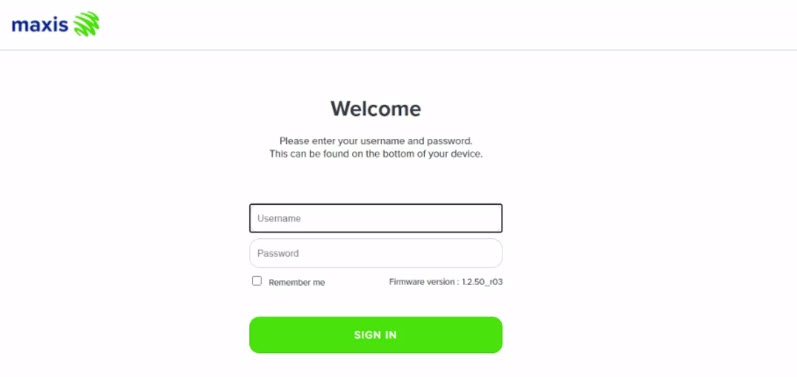
The default login of the router as below. If you have done a configuration on your router and changed your password previously, please use the password you have previously set.
Username: administrator
Password: Router S/N (Available on the sticker at the back of the router)
4. Once you have successfully login, the router's web-based setup page will appear.

5. From the left menu, select WIRELESS to access the screen below.

6. You may change the Channel selection by scrolling down to the Advanced Setup.
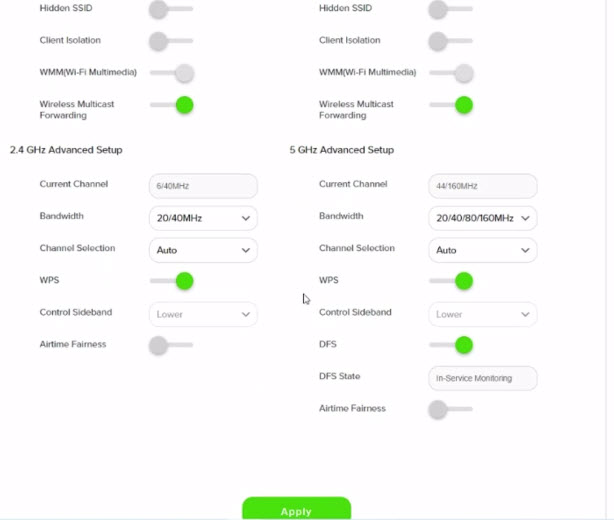
7. To change the channel on 2.4 GHz and 5 GHz, click the drop-down arrow for Channel, then select your desired channel.
Then, click "Apply" for the changes to take place.

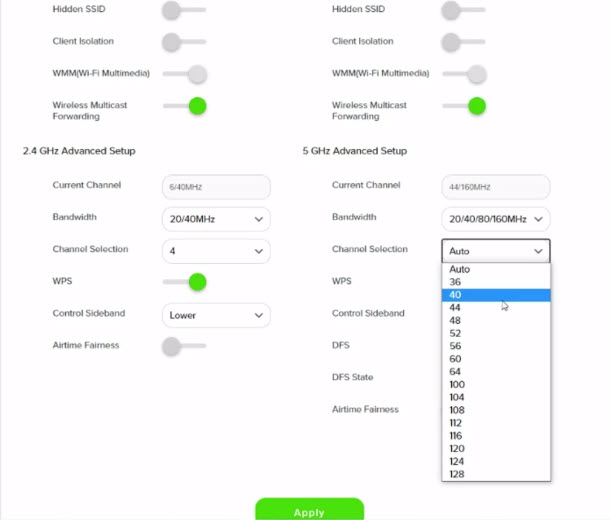
8. A warning box will popup, click "OK" for the changes to take place.

9. Please wait until the connection reestablish.

Yes, the subscription will be reflected on all your set-top box provided they are registered under our Multiroom service.
You may contact Astro's Contact Centre (03 - 9543 1543) to process the cancellation.
The Mesh WiFi device(s) needs to be returned upon service termination via an arranged pick-up by our installers.
There will be no penalty imposed upon the removal of Astro GO+ from your subscription.
Step 1:
Type ASTRO<space>BAL<space>10-Digit Astro Account No.
Example: ASTRO BAL 08XXXXXXXX
*Standard telco charges and Terms and Conditions apply
Step 2:
Send SMS to 66688
In general, these two bands can be differentiated with these parameters: Coverage, Channel Interference and Speed.
2.4GHz gives better coverage but lower speeds, while 5GHz provides faster internet but covers a smaller area.

Please disregard the reminder if payment had been made and do check if you have any outstanding balance on Astro Quick Pay.
STEP 1
Check the Audio settings on your box and set to Auto.
Refer guide to change Digital Audio Settings.
STEP 2
If issue persist, check if there is any 3rd party device (sound system/hdmi splitter) connected between box and TV.
STEP 3
If using 3rd party devices, bypass/remove 3rd party device and make sure HDMI cable connected directly from box to TV.
STEP 4
If issue persist, connect to Live Agent via WhatsApp for help.
You will need to have an Astro subscription before you can subscribe to Disney+ Hotstar as an add-on service via Astro or enjoy any Astro bundle promotions. Please click here to subscribe to our Movies, Premium 1, Premium 3 or Platinum Pack to enjoy all your favourite Global and Malaysian hits for even better value and savings!
There is no contract for this subscription.
Please refer to the table below:

Note:
Please find some examples (for Residential customers) as below:
Termination
Customer signed up for Entertainment Plus Pack (24-month contract) with Ultra Box. Customer decided to terminate the subscription 8 months into the contract. As the customer still has 16 months remaining, the maximum applicable fee will be RM41.67 x 16months = RM666.67
Pack downgrade
Customer signed up for Movies Pack (24-month contract) with Ultra Box. 18 months in, customer decides to downgrade to Primary Pack (24-month contract). As the customer still has 6 months remaining, the maximum applicable fee will be RM20.83 x 6months = RM125
Dropping off Netflix or Disney+ Hotstar within first 12 months
Customer signed up for Entertainment Plus (24-month contract) with Ultra Box and 12-month commitment on Netflix App. 6 months in, customer decides to upgrade to Premium Pack 1 (24-month contract) which does not include Netflix App. As the customer still has 6 months remaining in the first 12 months of commitment for Netflix App, the maximum applicable fee will be RM41.67 x 6 months = RM250. Upon upgrading to Premium Pack 1, a new 12-month commitment for Disney+ Hotstar App begins alongside the 24-month contract on the package.
Your Astro account number is a 10-digit combination
E.g: 08XXXXXXXX
STEP 1

Try to change channels on your Astro remote.
INDICATOR: LED blinking 3 times / NO LED blink
SOLUTION: Replace new battery
Proceed to Step 2.
INDICATOR: LED blinking 1 time
Confirm it's not your Astro remote faulty, let's proceed to Step 3.
STEP 2
If issue remain after the battery replacement, this might be due to a faulty Astro remote.
Try changing the channel manually directly from the box front panel (If any).
If it's working, you might need to replace your Astro remote.
You may walk-in to our nearest Customer Service Center for the replacement.

STEP 3
You need to refresh the box setting by initiate manually from box front panel.
Refer to Refresh Box setting Guide steps here.

