
A free satellite TV service from Astro. Watch lifetime entertainment, news, learning & information and more.
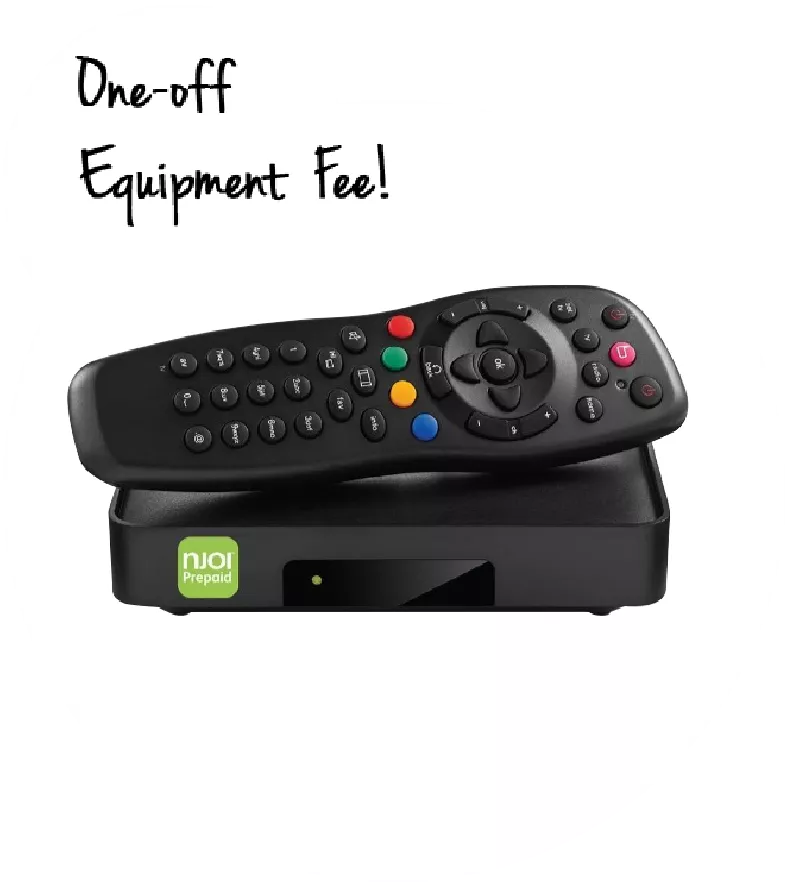
Pictures for illustration only.
Enjoy free access to 15+ TV channels & 10+ radio channels.
* Subject to Astro terms & conditions.


Step-1 |
Step-2 |
Step-3 |
Choose a plan & sign-up online. |
Sit back & wait for installation. |
Enjoy your new Astro / Broadband! |
A free satellite TV service from Astro. Watch lifetime entertainment, news, learning & information and more.
Pictures for illustration only.
New decoder only without satellite dish & cabling. You must have Astro/Njoi satellite dish and cable installed and working properly.
Including installation.
New decoder complete with satellite dish & cabling.
Including installation.
Applying for
| Njoi Astro UniFi Maxis |
Find your answers here.
We provide one stop service to apply Astro and Broadband for you.
You can avoid driving and queuing at the sales counter. We are the dealer that can help you to handle your application from the beginning to the end.
We do not charge you when you apply from us. There is no credit card information required to apply here. Charges are the same as you apply from the sales counter.
First, you can apply online, we will get back to you immediately during business hour. WhatsApp/Email/Fax us your Photocopy of IC (for malaysian) / Passport (for foreigners). When we receive all the information, we will proceed with your application immediately.
Once we receive your application with complete information, we will process your application immediately during business hour. The contractor from the service provider will then contact you for installation appointment once your application is approved.
Enjoy greater savings and hassle-free bill payment in one single bill for both Astro and Broadband. You get to enjoy Astro and Broadband at discounted price every month over the contract period of 24 months.
Astro offers multiple TV packs including Entertainment, Sports, Movies and Kids options. You can choose a pack that matches your viewing preferences and add optional streaming apps where available.
Yes, you may subscribe to Astro TV packs without bundling broadband. However, bundling Astro TV with Fibre Broadband may provide better monthly savings and convenience with a single bill.
For small households with light streaming and browsing, 100Mbps is usually sufficient. Larger families, gamers or heavy streamers may benefit from 500Mbps or 1Gbps plans for smoother performance across multiple devices.
Most Astro TV and Fibre broadband plans come with a 24-month contract. Early termination charges may apply if cancellation is made before the contract ends.
Yes, you may upgrade your TV pack or broadband speed at any time, subject to eligibility and coverage. A new contract period may apply depending on the upgrade.
Your monthly bill will be issued directly by Astro. You may receive it via email or access it through your Astro account. Bundled customers will receive a single combined bill for TV and broadband services.
Payment methods may include online banking, auto debit, credit card or other approved payment channels provided by Astro. Our team can guide you during the registration process.
If you experience any service interruption, you may contact Astro customer support for technical assistance. In many cases, issues can be resolved remotely or a technician will be arranged if necessary.
Yes, relocation is subject to service availability at your new address. Relocation charges and contract adjustments may apply depending on your plan.
No, you do not need a credit card to submit your application. Payment setup will be arranged directly with Astro after your service is approved.
Selected Astro TV packs allow optional add-ons such as streaming services depending on current promotions and availability. Additional monthly charges may apply.
Yes, a WiFi router is typically provided during fibre installation. The router model may vary depending on the selected broadband speed plan.
Yes, we will check the service coverage at your address before proceeding with your application to ensure broadband is available at your location.
For Malaysians, please provide a copy of your MyKad. For foreigners, provide a copy of your passport when submitting your broadband application.
After your application is approved, the service provider typically contacts you within 2 to 7 working days to arrange the broadband installation appointment.
Most Astro Broadband plans come with a 24-month contract starting from your installation date. If you relocate, a new 24-month contract may apply at your new address.
Yes, you can relocate your broadband service, subject to service availability at the new address. Your contract may reset for another 24 months from the new installation date.
Yes, you may request to relocate broadband devices within your home. Non-standard installation charges may apply and are payable to the installer directly after assessment.
Yes, you can switch to Astro Broadband. To avoid service interruption, it is recommended to activate the new service before terminating your current broadband contract.
Standard installations may be free during promotions, but non-standard installations (e.g., device relocation or complex wiring) may incur extra charges payable directly to the installer.
Starting 16 February 2024, you may be asked to perform Astro ID verification when you log in to their Astro account on digital platforms such as www.astro.com.my, Astro GO, My Astro etc. This 2-step process encompasses verifying your email address or phone number and re-entering of your existing password.
Yes, you can switch your current Asian Favourites selection to Viu Premium for FREE or purchase
Viu Premium as an add-on to your subscription for as low as RM8.40/month. Please refer to Q5
to Q9 for more information.
Please ensure that your existing Viu Premium account is terminated directly via the Viu mobile
app so you are not billed twice on two separate accounts. You can also reach out to Viu's
Customer Service (refer to Q18) or click on the “Contact Us” tab in the Viu app should you
require further assistance.
Please ensure that you have entered the correct email address or mobile number associated with your Disney+ account.
If you still do not receive the OTP, please WhatsApp or call Astro’s Customer Service at +603 9543 3838.
Auto-debit payment will be debited from your account 5-7 working days after your billing cycle date.
If your auto-debit payment is unsuccessful, you will receive an SMS alert.
You can watch Disney+ through any of the following methods:
a. Astro Ultra and Ulti Box by launching the Disney+ app under the Apps rail on your Home page.
b. Personal devices (e.g. mobile phones, tablets and Smart TVs) by downloading the Disney+ app or visiting the Disney+ website.
You will need to log in using the credentials created during activation.
Viu is available on the Ultra/Ulti Box for Astro customers to enjoy, as well as www.viu.com and
the Viu mobile app. If you have yet to upgrade to our latest Ultra/Ulti Box, please reach out to us
via WhatsApp by typing “Hi” at 03-9543 3838.
Yes, you may enhance your existing pack with desired content, app and service add-ons via My Astro App or My Astro Web.
STEP 1: Log in using your Astro ID
STEP 2: Go to Account
STEP 3: Tap on Subscription
STEP 4: Tap on Add-ons
STEP 5: Tap on Manage your add-ons to view other steaming apps you are not subsribed to
STEP 6: Tap on the steaming app you wish to add on
STEP 7: Tap on Confirm Order
After successfully adding ZEE5 Premium to your bill, follow the simple steps below to stream ZEE5 on your Ultra/Ulti Box:
Step 1: Go to your Astro Home Page and click “ZEE5” under the Apps rail
Step 2: Scan the QR code on screen with your mobile device
Step 3: Log in with an existing ZEE5 ID or sign up for a new account. Then, enter the activation code displayed on your TV screen into the ZEE5 mobile app.
Step 4: Now, enjoy streaming ZEE5 on your Ultra/Ulti Box!
Please ensure that the email address used to log in to the app is the same one used to purchase your ZEE5 premium subscription.
You require at least two devices to form a Mesh WiFi network which are Astro Fibre WiFi router and a Mesh WiFi unit.
The Mesh unit will link to the WiFi router to form the Mesh WiFi network. You may connect up to 5 Mesh WiFi units for optimal WiFi coverage in your home.
Astro X3 is a new way to become an Astro customer, designed for the big screen. It allows customers to sign up instantly and start streaming Astro directly on their Smart TV—without the need for a set-top box, satellite dish or installation.
Astro GO, on the other hand, is a companion app that comes with every Astro subscription. It extends the experience to smaller screens, enabling customers to watch their content on smartphones, tablets and PCs anytime, anywhere.
Please perform the following checks and troubleshooting steps:
1. Check if your TV supports the Astro app.
The Astro app is generally available on selected:
Kindly check that your Smart TV supports the Astro Smart TV app (kindly refer here).
If your TV uses a different operating system (e.g., older proprietary OS), the Astro app may not be available.
2. Update your TV software.
Go to: Settings → Support → Software Update
Install any available updates, then restart the TV and try again.
3. Search the correct app store.
Search for "Astro" or "Astro GO" (depending on your region and service availability).
4. If your TV's region is set incorrectly, certain apps may not appear.
Look under: Settings → General → Location/Region
Ensure it matches your actual country.
If you are still having issues, proceed to submit report via WhatsApp or Feedback Form and provide:
This will help our support team investigate and assist you further.
- Credit or Debit Cards
- Visa
- Mastercard
- Maybank2U - Pay using your Maybank2U account
- FPX - Pay using any local bank account via FPX
- E-Wallet - Touch "n Go
Astro X3 allow up to 2 concurrent streams at the same time, shared across your registered devices. If you’d like to enjoy more simultaneous viewing, you can add GO+ to increase to up to 4 concurrent streams for RM5.99 per month (exclusive of SST). While streaming is flexible across devices, only one Smart TV can be used at a time. The remaining streams can be used on mobile or other supported devices via Astro GO.
For Ultra/Ulti Plug & Play Box installation, it is recommended that you attempt to self-install by following the installation guide here, but there is an option to request for an installer to install the box at your premise. However, there will be a separate fee for this service request.
Within the packs itself, it is not possible to replace or swap out specific services or content. These new packs are designed to provide the best value and content variety at an affordable price. We encourage you to enjoy your experience with the pack and if you’d like, to consider any suitable add-ons for content/service/apps to complement your viewing experience further.
The minimum internet speed required to stream via Ultra Plug & Play Box is 30Mbps for 4K UHD viewing, and Ultra/Ulti Plug & Play is 10Mbps for HD viewing. For better streaming experience, we recommend 100Mbps and above.
You do not need to request for a reconnection as our system will detect your payment and process it immediately, provided you paid via a real-time payment channel.
Click here for a full list of our payment channels.
Unfortunately, this means that you are using a TV model that does not support 4K UHD resolution (Sony BRAVIA 4K GB, Sony BRAVIA 4K UR or Sony BRAVIA VH).
Not to worry, we are working with the Sony team to ensure you will be able to enjoy these 4K UHD channels soon. We will keep you posted once these channels are available to you!
For any NJOI-related information, please visit the NJOI Help & Support page at
https://purchase.njoi.com.my/en-support
Due to copyright restrictions, certain shows may not be available for live streaming. However, many shows become available for on-demand streaming shortly after their original airing. The availability and timing can vary depending on the specific show, streaming service, and licensing agreements in place.
You may call Astro's Contact Centre at 03-9543 3838 or wait for an Astro representative to be in contact with you within 2 working days to assist you with your order.
Settlement of total outstanding balance is to be made prior to any of the request.
Yes, for customers on the Entertainment, Entertainment Plus, Premium 2, Premium 3 or
Platinum Pack, you may remain with your current Asian Favourites selection: Chinese, Indian or
Indonesian. If you would like to add Viu Premium to your bundle, you may do so for only
RM8.40/month (RRP: RM21.90). Please reach out to us via WhatsApp by typing “Hi” at 03-9543
3838 to add Viu Premium to your subscription.
Your documents will be handled in compliance with standards set by PDPA (Personal Data Protection Act 2010) and will not be used for other means without your specific consent.
Each account can only have one Astro X3 pack subscription at a time, whether it is the Astro X3: Entertainment 12 Pack or the Astro X3: Sports 12 Pack. Multiple subscriptions under the same account are not supported. If you wish to subscribe to another plan, you can do so by creating a separate account using a different email address. Each subscription will be managed independently.
Yes. You can explore the My Astro app even if you’re not logged in. Click at “Continue as guest” to check out the app features before singing up or logging in.
However, if you're an Astro customer we recommend you sign up/login with your Astro ID for the best experience. Here's how to link your Astro account to your Astro ID.
Download My Astro app or visit the My Astro website.
You can access the self-help service 24 hours a day for the following:
1. Check account balance.
2. Refresh your Smartcard if your account is active but TV screen displays "This channel is not included in your subscription" or "We apologise for the service interruption".
3. Check application status.
4. Guide on Self Service troubleshooting guide via SMS Link.
5. Check trouble ticket appointment announcement.
6. Apps Related Self Service login & Activation guide via SMS Link.
7. Apps Related FAQ Details via SMS Link.
The Multi-user Profile feature allows customers to create individual profiles within their Astro Box and Astro GO with the following personalisation:
The MUP feature is a great way to allow individual users to tailor personal Astro experiences whilst using a shared device (e.g.: Astro Box) in the household, providing them with better personalised recommendations and encouraging better content discovery.
HBO Max is a brand-new streaming service in Southeast Asia, Taiwan and Hong Kong, raising the bar for quality entertainment. Offering a collection of blockbuster movies, groundbreaking series, iconic hits, best-in-class real-life stories from food, home, lifestyle and documentary, as well as family favourites. Dive into beloved brands and franchises like HBO, Harry Potter, the DC Universe, Cartoon Network, Warner Bros., Discovery and beyond. HBO Max delivers exclusive stories and elevates the streaming experience.
If you see this message, it means the maximum number of devices currently streaming on your Astro account has been exceeded.
Please perform the following checks and troubleshooting steps:
1. Stop Streaming on Other Devices
2. Wait a Few Minutes
3. Try Again
4. Check Your Device Usage
If you are unable to remove a device or continue to see the error message, proceed to submit report via WhatsApp or Feedback Form and provide:
This will help our support team investigate and assist you further.
Note: Please be aware that only one Smart TV device is allowed per account at any point in time.
When Band Steering is enabled, only one SSID network name with one password is available. Example:
i. SSID: SSID, Password: 12345678
Please provide your primary mobile number via My Astro Portal, or send it to one of our platforms found here.
Note:
You can retrieve your Astro account number by referring to the top right corner of your Astro bill, which has a 10-digit combination (e.g.08XXXXXXXX or 09XXXXXXXX).
Another way to retrieve your account number is via My Astro:
My Astro app on your Internet-connected Ulti/Ultra Box
1. Press "Home"
2. Launch My Astro app on the Ultra/Ulti Box (shortcut icon next to Settings icon on Home screen, or launch the app through app rail)
3. Once the app is loaded, press Yellow button on your Astro remote control to reveal Account Details
My Astro app or web
1. Download the My Astro app or visit My Astro web
2. Login using your Astro ID
3. You will see your account number tied to your subscription located at the top corner of the home page.
Astro GO
🔄 Want to manage your Astro subscription easily?
📱 Download the My Astro app to:
- Manage your pack subscriptions
- Get add-ons in just minutes
- Get details about your contract
Netflix changes their prices and plans from time to time to reflect the improvements that they make to the service. They continue to invest heavily in great new shows and films, to deliver great value for money.
Starting 29th April 2025 onwards, the Sun NXT app will be available on the Ultra/Ulti Box for all Astro customers to enjoy on the big screen, web app or/and mobile app.
Astro customers are entitled to a two (2) years manufacturer warranty and Installation warranty. During this period, after-sales service is free of charge. However, when your warranty period is over, all after-sales service is subject to a minimal service charge starting from RM65 inclusive of 8% Service Tax.
Other Decoders/Ultra Box Without contract:
Astro customers are entitled to a one (1) year manufacturer warranty and (6) months Installation warranty. During this period, after-sales service is free of charge. However, when your Installation warranty period is over, all after-sales service is subject to a minimal service charge starting fromRM65 inclusive of 8% service tax.
STEP 1
Try to change channels on your Astro remote. Check the LED light.
If the LED is blinking 3 times or if it is not blinking, replace the batteries and proceed to STEP 2.
Otherwise, if the LED is blinking 1 time, your remote is working fine, let's proceed to STEP 3.
STEP 2
Check if you can change channels using your Astro remote control. You should no longer be experiencing this problem if is a battery issue.
If issue remain after batteries replacement, proceed to STEP 3.
STEP 3
You need to refresh the box setting manually from the box front panel.
Refer to Refresh Box setting (Clear NVRAM) - Ultra / Ulti Box.
If issue persist, please submit the issue on our Feedback Form.
This error indicates that you are streaming on Astro GO while being connected to a VPN. Please close your VPN application and try streaming again.
If you are still having issues, proceed to submit report via WhatsApp or Feedback Form.
Starting 1 January 2026, Astro is required under Section 82C(11) of the Income Tax Act 1967 to submit any monthly invoice of RM10,000 or more directly to LHDN. This process does not require customer consent and is part of regulatory compliance. Rest assured, it will not affect your billing or Astro services.
For customers with Entertainment Plus, Movies Plus, Sports Plus, Premium 2, Premium 3, and Platinum Pack
For Non-Entertainment Plus, Premium 2, Premium 3, and Platinum Pack Pack customers (New Netflix customers)
Note: The Netflix plan will be defaulted to Premium, you may select ‘Change Plan’ to choose the ‘Standard’ plan.
For Non-Entertainment Plus Pack, Premium 2, Premium 3, and Platinum Pack customers (Existing Netflix customers)
You can enjoy Prime Video benefits on Prime Video website and/or mobile app for 2 months once you have activated your Prime Video access anytime between 24 April 2025 – 23 June 2025.
No, there are no installation or activation fees for Astro X3, as these plans do not require a set-top box or installation. Once your sign-up is complete, you can start streaming Astro content immediately via the Astro app on your Smart TV or through Astro GO on supported devices.
Please ensure that you are using the correct ID for eKYC submission.
For Malaysians :
1. Please ensure you are using MyKad or MyTentera.
2. Capture the front and back of your ID.
3. Ensure that there is no glare when capturing the photo.
4. Ensure that are capturing it in a bright room to have the highest picture quality.
5. Please do not cover your ID when capturing it, as it may impact the OCR Optical Character Recognition accuracy.
For Malaysian Permanent Resident and Other Nationality :
1. Please use Passport only.
2. Please capture your whole passport, which has your personal information on it and your signature.
3. Ensure that there is no glare when capturing the photo.
4. Please do not cover your ID with your when capturing it, as it may impact the OCR Optical Character Recognition accuracy.
No, Astro & Broadband only offers a 24-month contract period upon sign up.